
此篇文章記錄如何解決 R 程式碼在 VS Code 上會顯示一大堆波浪底線的問題(如下圖)

Step 1: 安裝 R extension
第一步一定要先安裝 VS Code 的 R 擴充套件,才會有排版建議和自動 Format 的功能

預設的 R Linter 是一行只能 80 字,很多程式碼底下會出現警告的波浪線條
Step 2: 新增 .lintr 檔案
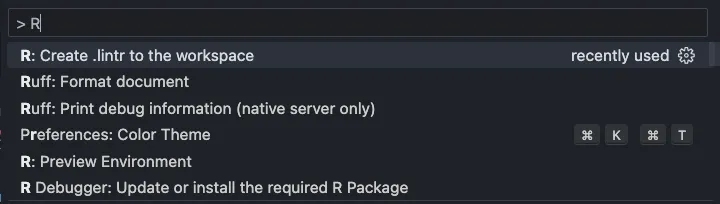
- cmd + p (或 ctrl + p for Windows) 叫出 VS Code 的指令列
- 輸入
> R之後點擊「Create .lintr to the workspace」
(當然你也可選擇直接手動在根目錄新增檔案)
.lintr 檔案會出現在你的專案根目錄中
透過 R extension 預設內容如下,可以把全部先刪掉
linters: linters_with_defaults() # see vignette("lintr")
encoding: "UTF-8"
Step 3: 修改 .lintr 檔案
在檔案中加上以下內容,讓 line length 限制提高到 120 字
linters: linters_with_defaults(
    line_length_linter = line_length_linter(120L)
  )
Step 4: 重新開啟 R code
加上去之後,重新開啟 R 程式碼,會發現警告的波浪線條已經不見了!

也可以在 .lintr 檔案中加上一些其他的設定,像是允許 whitespace, commented code 等
我個人使用的完整 linter 設定如下
最終完整 .lintr 檔範例
linters: linters_with_defaults(
    line_length_linter = line_length_linter(Inf),
    object_usage_linter = NULL
  )
所有設定都可以參考官網

https://lintr.r-lib.org/articles/lintr.html#customizing-active-linters
常見問題
使用 .lintr 需要注意的是,它是一種 DCF 檔案格式,這種格式對於縮排和空白行的限制非常嚴格,所以常常會遇到 Failed to run diagnostics: ! in callr subprocess. 的錯誤,例如以下
顯示 Malformed config file, ensure it ends in a newline 的錯誤
- 解決方法:記得要把
.lintr最後空出一行
linters: linters_with_defaults(
    line_length_linter = line_length_linter(Inf),
    object_usage_linter = NULL
  )
#!注意!這裡一定要多空一行!
 JumpingCode 資料科學手記