解決 R 程式碼在 VS Code 中格式 Style Lint 的問題

  1. Step 1: 安裝 R extension
  2. Step 2: 新增 .lintr 檔案
    1. .lintr 檔案會出現在你的專案根目錄中
  3. Step 3: 修改 .lintr 檔案
  4. Step 4: 重新開啟 R code
    1. 最終完整 .lintr 檔範例
    2. 所有設定都可以參考官網
  5. 常見問題
    1. 顯示 Malformed config file, ensure it ends in a newline 的錯誤

此篇文章記錄如何解決 R 程式碼在 VS Code 上會顯示一大堆波浪底線的問題(如下圖)


Step 1: 安裝 R extension

第一步一定要先安裝 VS Code 的 R 擴充套件,才會有排版建議和自動 Format 的功能

預設的 R Linter 是一行只能 80 字,很多程式碼底下會出現警告的波浪線條

Step 2: 新增 .lintr 檔案

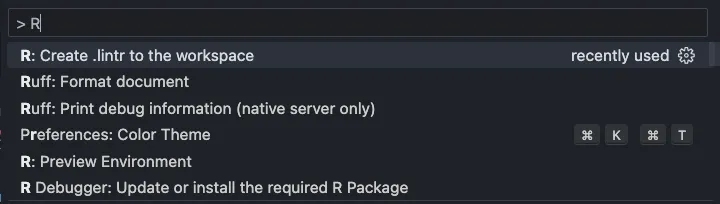
  1. cmd + p (或 ctrl + p for Windows) 叫出 VS Code 的指令列
  2. 輸入 > R 之後點擊「Create .lintr to the workspace」

(當然你也可選擇直接手動在根目錄新增檔案)

.lintr 檔案會出現在你的專案根目錄中

透過 R extension 預設內容如下,可以把全部先刪掉

Step 3: 修改 .lintr 檔案

閱讀更多»

只要 5 分鐘!讓你的 Mac 擁有美觀的 Terminal!2025 最新最簡單快速的 Zsh + iTerm2 + Powerlevel10k 設定教學

  1. 前言
  2. 環境需求
  3. 安裝順序
    1. 1. 安裝 zsh
    2. 2. 安裝 oh-my-zsh
    3. 3. 安裝 iTerm2
    4. 4. 安裝主題 Powerlevel10k
    5. 5. 設定主題
    6. 完成!
  4. 進階推薦:安裝 zsh 的 Plugins
    1. 1. 安裝
    2. 2. 設定 Plugins 並啟用
  5. 如果 VS Code 的 Terminal 無法正常顯示圖示的話
  6. 參考資料

前言

最近在重新設定 Mac 的 Terminal 時,發現現在關於 Zsh 和 iTerm2 的網路文章都太舊、很多指令已經不適用、安裝順序也很混亂,對於新手來說我覺得會很挫折,所以決定用最簡潔的方式把自己最近設定的流程記錄下來,目的是希望新手們也能輕鬆快速擁有一個美觀好用的 Terminal (幾年前我還是新手的時候,真的是設定到很崩潰…)

環境需求

  1. MacOS
  2. 已安裝 Homebrew
  3. 已安裝 Git

安裝順序

請按照 1~5 步驟的順序,在 Terminal 中執行指令

1. 安裝 zsh

2. 安裝 oh-my-zsh

3. 安裝 iTerm2

4. 安裝主題 Powerlevel10k

5. 設定主題

開啟 iTerm 並執行:

  1. 按下 i 切換成 insert 模式,往下拉會看到 ZSH_THEME,將它設定為 ZSH_THEME="powerlevel10k/powerlevel10k",輸入 :wq 儲存並離開
  2. 執行指令:exec $SHELL
  3. 照著互動式的選擇題,依自己需求和喜好去輸入對應字母數字,最後就會自動套用到設定檔(若沒有跳出互動式設定或是想要再次調整,隨時可執行指令 p10k configure 去做設定)

完成!

恭喜!你的 Terminal 已成功美化!

(內建的 Tango Dark 主題就已經很好看)

如果想要讓使用體驗更升級的話, 請往下繼續閱讀~

閱讀更多»

[Streamlit] 解決部署錯誤:Failed to create the application reverse proxy

最近在使用 Streamlit 並且使用 Streamlit cloud 進行部署的時候,在 App 跑完部署的背景流程之後,遇到一個黑畫面顯示:

{"Code":2,"RawMessage":"Failed to create the application reverse proxy"}

上網查也找不到解法,後來發現是因為我裡面有用到 Database 的 credentials(我是用 MongoDB),但忘記把他新增到 Settings 裡面的 Secrets 裡面,如下圖的地方

新增上去之後重新整理頁面,App 就可以正常執行了。

Solving Spark error: “detected implicit cartesian product for FULL OUTER join between logical plans"

Error

I encountered an error when I want to outer join two dataframes using PySpark.

joined_df = (
    df1
    .join(df2), how='outer')
)

org.apache.spark.sql.AnalysisException:
detected implicit cartesian product for FULL OUTER join between logical plans

Solution

To enable crossJoin in SparkSession can solve this problem.

spark.sql.crossJoin.enabled: true

Code example

spark = (
    SparkSession
    .builder.appName('my_spark')
    .config("spark.sql.crossJoin.enabled", "true")
    .getOrCreate()
)

Solving Spark error: “Cannot broadcast the table that is larger than 8GB"

Error

Although I have already set crossJoin.enable to true and autoBroadcastJoinThreshold to -1, I still got an error.

spark = (
    SparkSession
    .builder.appName('my_spark')
    .config("spark.sql.crossJoin.enabled", "true")
    .config("spark.sql.autoBroadcastJoinThreshold", '-1')
    .getOrCreate()
)

java.util.concurrent.ExecutionException:
org.apache.spark.SparkException: Cannot broadcast the table that is larger than 8GB: 8 GB

This error is due to default PySpark broadcast size limit which is 8 GB.

Solution

There is no specific code or config we can set to solve this problem (at least I didn’t find one).

What we can do is to optimize our code.
Here are some of my ideas.

  • Use select(cols) or selectExpr(cols) to choose the columns we actually need before join to reduce the dataframe’s size.
  • Use filter(expr) to filter out what data we don’t need.
  • Use normal df1.join(df2) instead of using df1.join(broadcast(df2)).

I selected less columns of my dataframe (from 7 cols to 3 cols) to solve my problem.